
Per sales channel configuration
Paid extension
The Per sales channel mode is an in-app purchase for the plugin. Without an active extension the mode is visible in the admin but locked; Unlock opens Shopware's purchase dialog.
When do I need this?
In Standard mode one category and one filter combination apply to all sales channels of the landing page. This requires the same categories, properties and manufacturers to exist in all sales channels.
That is not always the case. Typical examples:
- One sales channel per language or country, where the ERP creates separate properties and categories per sales channel ("Red" is a different property option in the German and the English shop).
- A B2B and a B2C channel with separate category trees.
So far the only option was to copy the landing page per sales channel and maintain all meta data, texts and layouts twice. The Per sales channel mode solves this: one landing page with shared meta data, layout and sitemap settings, but its own category and filter combination per sales channel.
What is shared, what is per sales channel?
| Shared (tabs General, SEO & Sitemap, Layout) | Per sales channel (tab Settings) |
|---|---|
| Name, active, title, description | Category |
| Meta title, meta description, keywords | Manufacturers |
| Layout and element contents | Properties |
| Request URL and canonical URL |
Robot type and sitemap settings
The robot type is copied to the variants once when switching. The sitemap settings apply with their default values in Per sales channel mode (priority 0.5, daily, not excluded). Later changes to these fields of the landing page have no effect in this mode.
The configuration for one sales channel is called a variant. A landing page is reachable in exactly those sales channels for which a variant exists.
Switching to Per sales channel
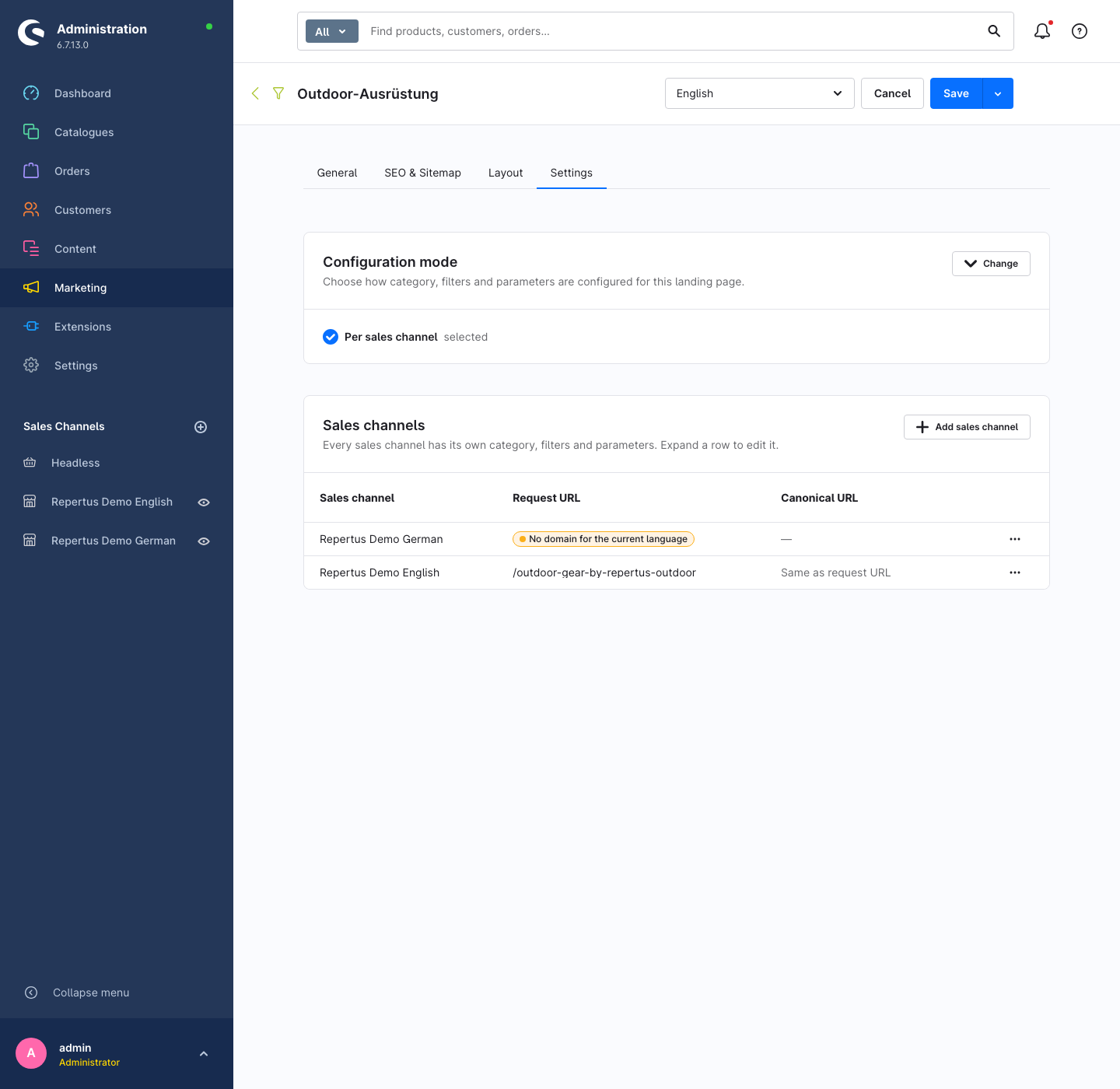
- Open the landing page, tab Settings, click Change in the Configuration mode card.
- Choose Per sales channel. Unsaved changes have to be saved first.
- The conversion runs immediately: for every previously assigned sales channel a variant with the previous category and filter combination is created. Existing request URLs are kept.
- Now adjust the configuration per variant: select the row in the grid, edit category, manufacturers, properties and URLs in the detail card, Save.
Further sales channels are added via Add sales channel; the new variant requires a category. Remove deletes the variant including its configuration; the landing page is no longer reachable in that sales channel afterwards.
Category outside the navigation tree
If the category of a variant is not part of the navigation tree of its sales channel, the admin shows a warning. The variant stays saved, but cannot get a URL in that sales channel.
Back to Standard
- Choose Change → Standard.
- In the dialog select the variant whose category and filter combination should apply to all sales channels from now on.
- Confirm Switch and discard variants.
The configuration of the other variants is lost irrevocably. The sales channel assignment is kept: all sales channels that had a variant stay assigned.
Converting back is also possible without an active extension.
When the extension expires
If the in-app purchase expires, nothing happens in the shop: all landing pages in Per sales channel mode are delivered unchanged, including URLs, sitemap and redirect.
In the admin these landing pages are read-only, including the shared fields such as meta data and layout. In the overview their mode badge is marked red, and the list can be narrowed down with the filter Per sales channel (affected). Inside the landing page a banner points to the two ways out:
- Reactivate extension opens the purchase dialog.
- Switch to standard mode converts back as described above.