
Managing landing pages
All landing pages live under Marketing → SEO Filter Landingpages.
Overview
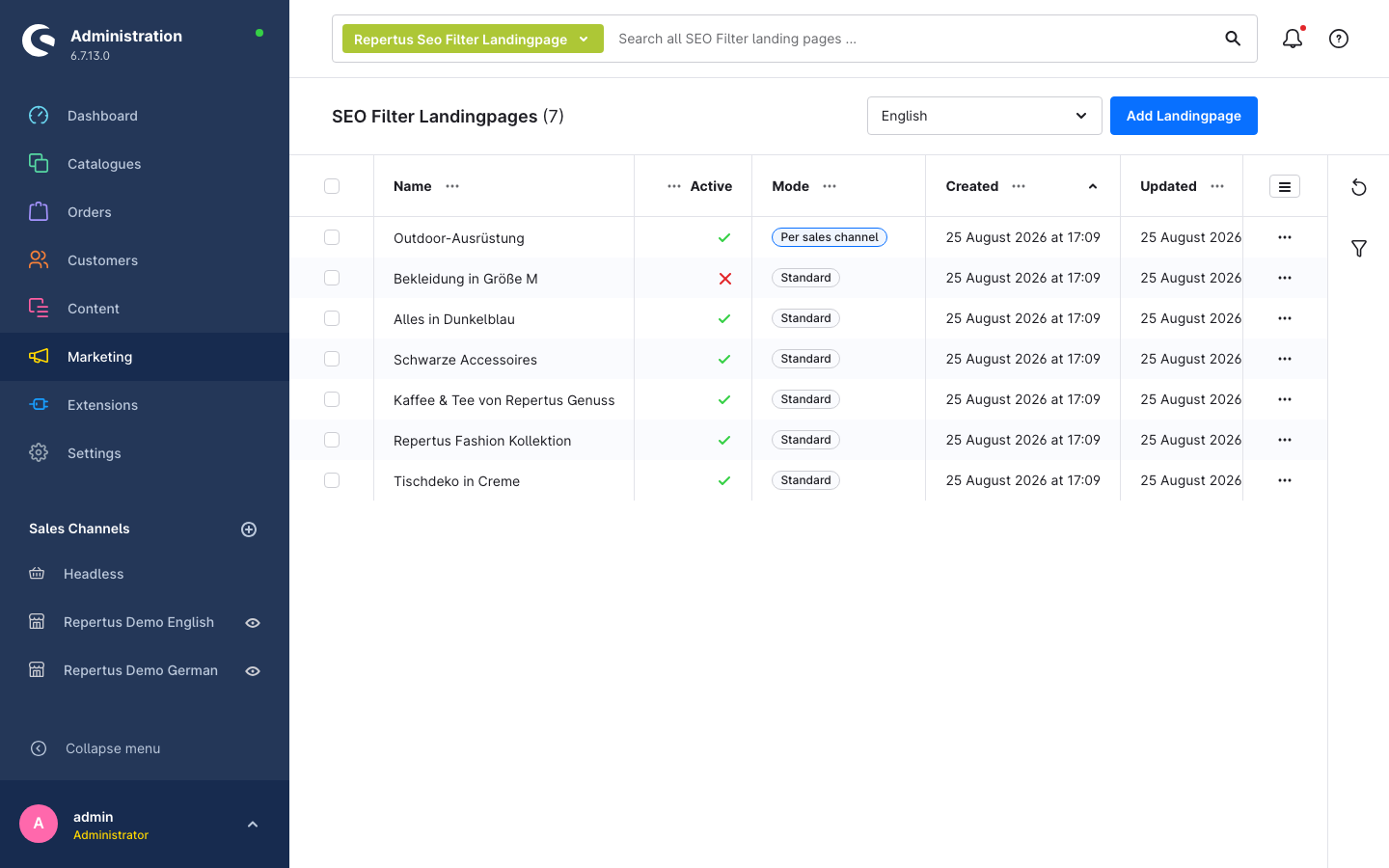
The list shows name, active state, configuration mode as well as creation and update date. The sidebar on the right filters by state, and without an active per sales channel extension also by mode. The search bar finds landing pages by name and title; the global admin search knows them too. The context menu of a row offers Duplicate. The copy is named like the original with the suffix "Copy", takes over meta data, layout, properties and manufacturers and is created inactive. Sales channels, and in Per sales channel mode the variants, are not copied and have to be assigned again in the copy.
Creating a landing page
- Click Add Landingpage.
- General tab: fill in Name (internal), Title and Robot type. The title is the basis of the URL, see SEO URL template.
- SEO & Sitemap tab: enter the Meta title (required).
- Layout tab: assign a layout. Without a layout the landing page stays empty in the shop.
- Settings tab: choose the configuration mode, assign sales channels, define category and filters.
- Save. Afterwards the request URLs can be checked and the landing page enabled via the Active switch.
New landing pages stay inactive until activated deliberately. An inactive landing page returns a 404 error in the shop, is not listed in the sitemap and does not trigger a redirect from the listing. Its URLs are kept.
Languages
Title, description and meta data are translatable. Switch the language via the language switch in the top right; empty fields fall back to the default language.
General tab
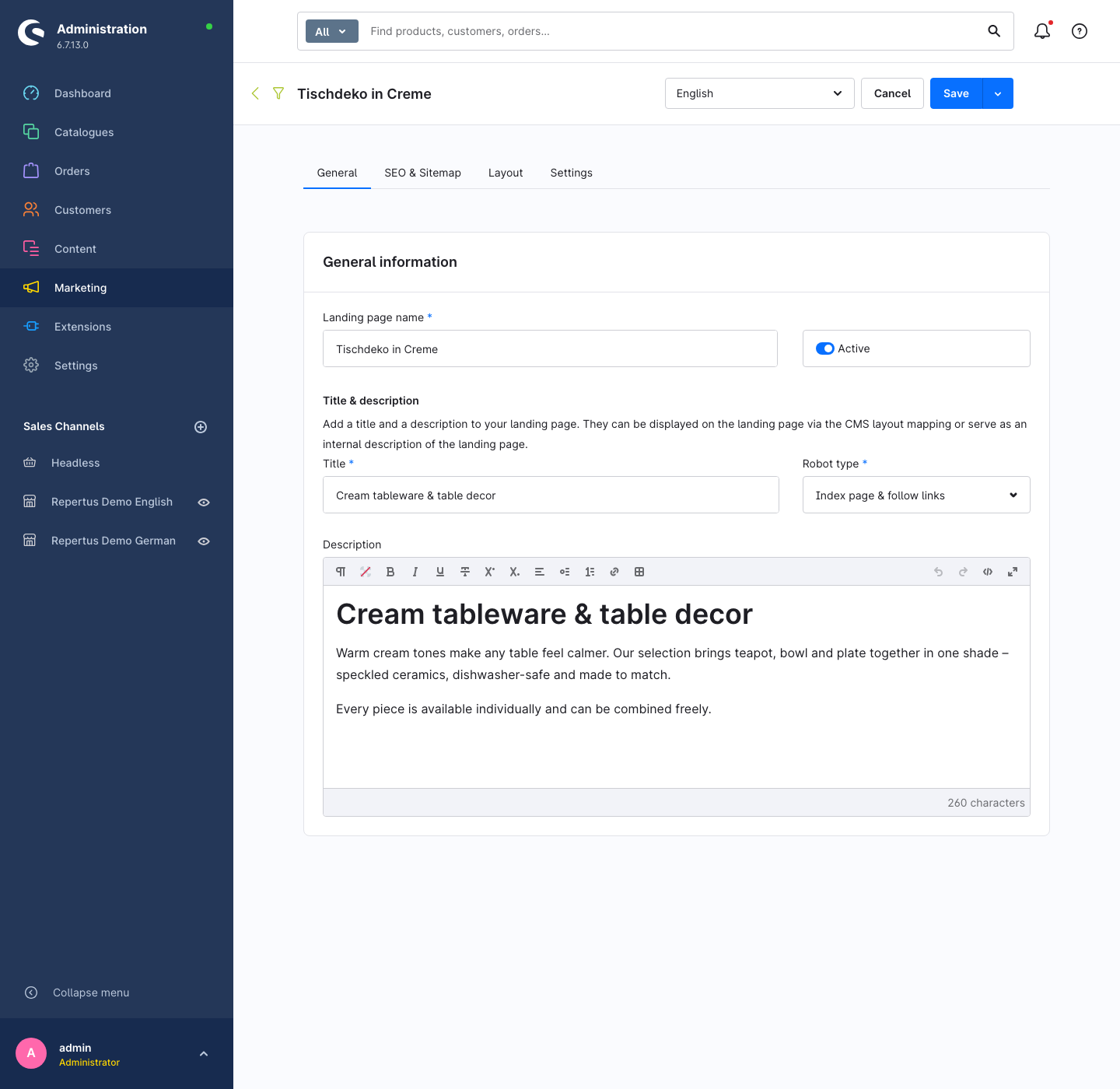
| Field | Meaning |
|---|---|
| Landing page name | Internal name, shown in the overview. |
| Active | Enables the landing page in the shop. |
| Title | Headline of the page. Used by the SEO URL template and available in the layout via data mapping. |
| Robot type | Directive for search engines: index the page and/or follow links. Default is Index page & follow links. |
| Description | Formatted free text, for example an SEO text for the layout. Used as meta description if none is set. |
If custom fields are defined for the entity Repertus Seo Filter Landingpage (Settings → System → Custom fields), they appear below in the Custom fields card.
SEO & Sitemap tab
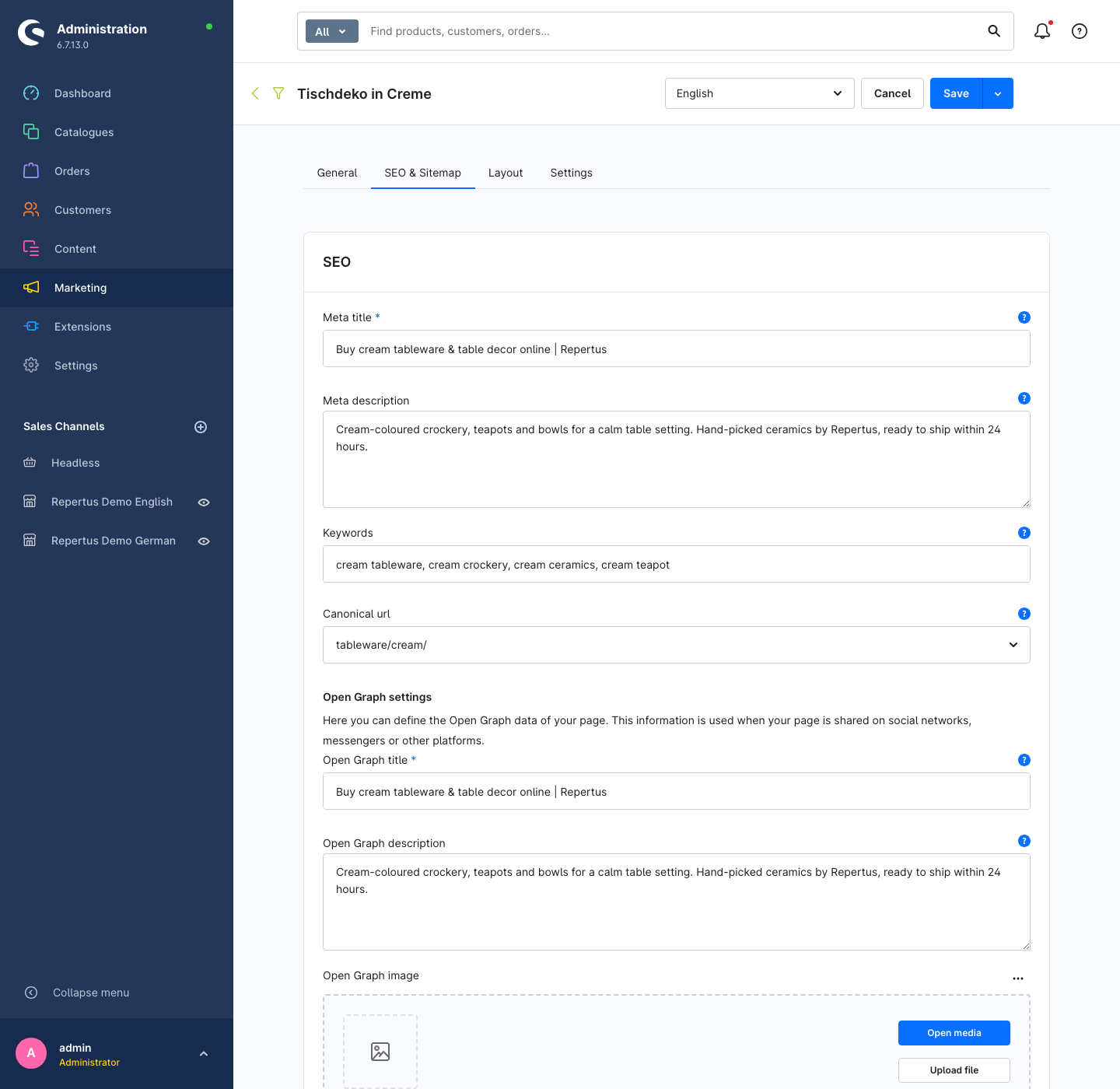
SEO
| Field | Meaning |
|---|---|
| Meta title | <title> of the page. Recommendation: up to 70 characters. |
| Meta description | Description in the search result, at most 255 characters. |
| Keywords | Meta keywords. |
| Canonical URL | Address search engines should treat as the original. Defaults to the landing page itself (Same as request URL). Only change it if the landing page deliberately should not rank, for example in favour of the category or another landing page. In Per sales channel mode the field is maintained per variant in the Settings tab. |
Open Graph settings. Title, description and image for sharing the page on social networks. The fields are stored, but the current version does not yet output them on the page; the shop uses meta title and meta description there.
Sitemap settings
| Field | Meaning |
|---|---|
| Exclude from sitemap | Do not include the landing page in the sitemap. |
| Sitemap priority | Value between 0.1 and 1.0 (default 0.5). |
| Sitemap change frequency | Hint for search engines how often the content changes (default: daily). |
Layout tab
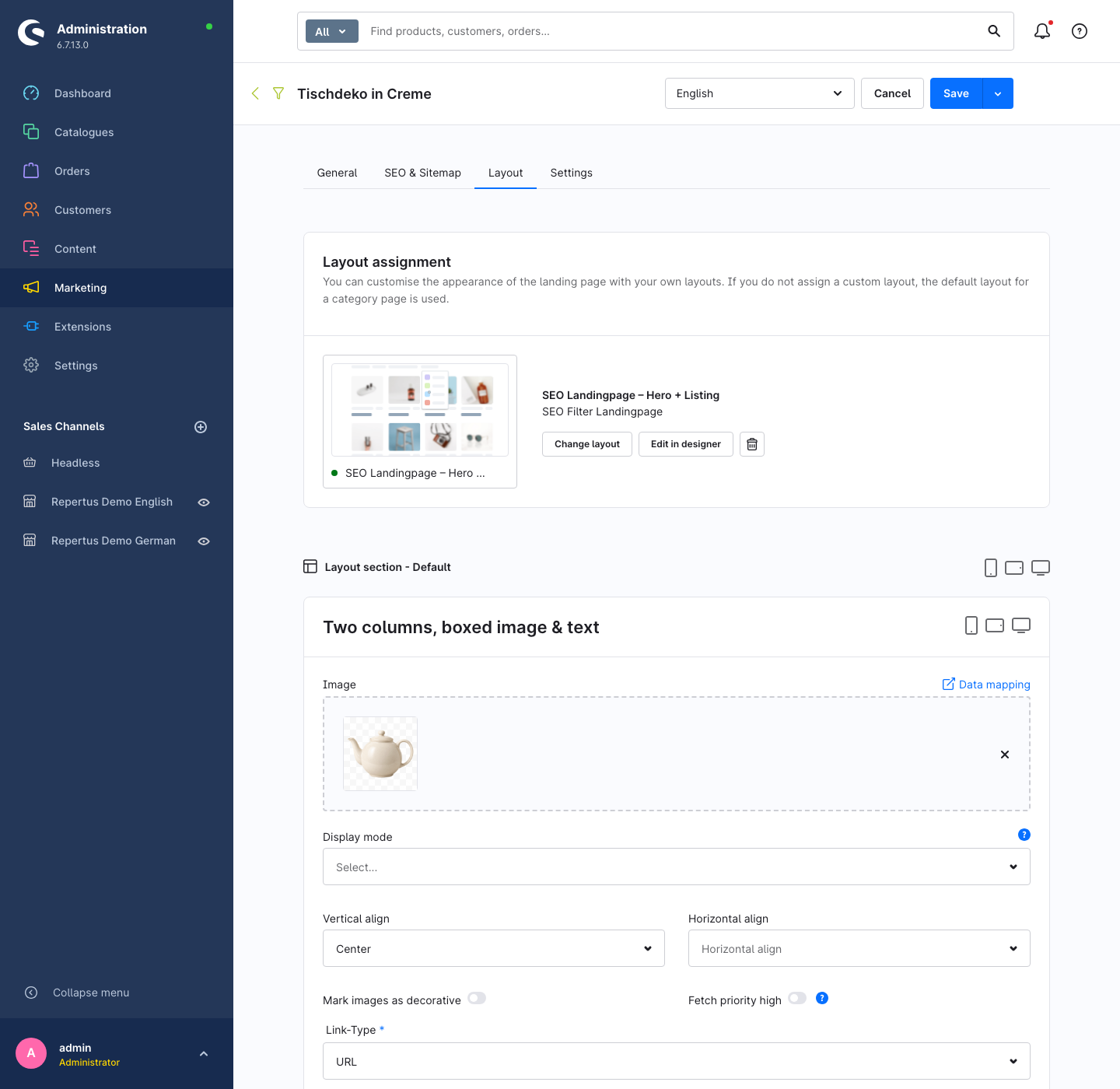
Here a Shopping Experience layout of type Product list or Landing page is assigned to the landing page.
A layout is required
Without an assigned layout the landing page returns an empty page in the shop, without listing and without meta data. A layout with a product listing element is the minimum.
After assigning, the configurable elements of the layout appear. They can be filled right here, for example with an SEO text, or bound to fields of the landing page via data mapping (title, description, meta data). This way one layout can serve many landing pages. Default category blocks such as the product listing are filled with the landing page's data automatically and are therefore not listed.
Edit in designer opens the layout in Shopping Experiences, Change layout swaps it, the trash button next to them removes the assignment. Without a layout, Assign layout and Create new layout are offered.
Settings tab
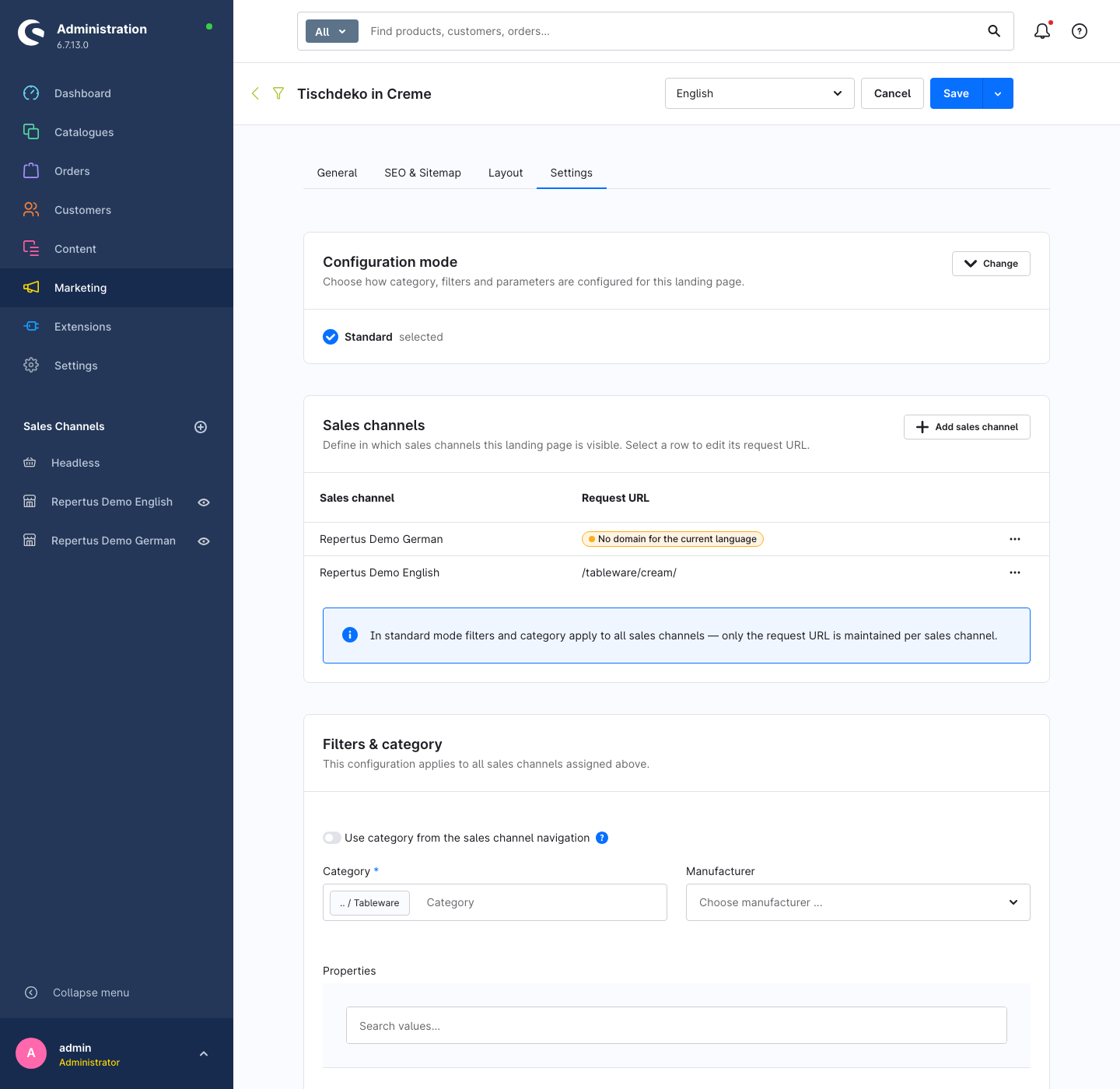
Configuration mode
The first decision for every landing page:
- Standard. Category and filters apply to all assigned sales channels together. Category, properties and manufacturers must exist in all of these sales channels.
- Per sales channel. Category and filters are maintained separately for every sales channel. Paid extension, see Per sales channel configuration.
The further cards only appear after the choice. The mode can be switched later via Change; unsaved changes have to be saved first.
Sales channels
The Sales channels card defines where the landing page is reachable. Add sales channel adds storefront sales channels, the context menu of a row allows to remove them again. The landing page is only reachable in assigned sales channels and only listed in their sitemaps.
Each row shows the request URL for the currently selected language, and in Per sales channel mode also the canonical URL. Open in storefront opens the landing page in the shop.
Filters & category
In Standard mode the configuration is in the Filters & category card, in Per sales channel mode in the detail card of the respective row.
| Field | Meaning |
|---|---|
| Category | The category whose listing the landing page shows. |
| Use category from the sales channel navigation | Instead of a fixed category, the entry category of the respective sales channel is used. Useful with several sales channels that have parallel category trees and the same filter configuration. Only available in Standard mode. |
| Manufacturer | One or more manufacturers the listing is restricted to. |
| Properties | Property options (for example colour: cream) the listing is restricted to. Choose via the search; selected options are shown grouped. |
Manufacturers and properties together form the filter combination of the landing page. It decides when a customer is redirected from the regular listing to the landing page: only for exactly this combination, see Behaviour in the storefront.
Category and sales channel
The category must be part of the navigation tree of every assigned sales channel, otherwise no URL can be generated for that sales channel.
Request and canonical URL
Selecting a row in the sales channel card (or Edit URL in the context menu) opens the detail card with the Request url. It applies to this sales channel and the language selected at the top.
- By default the URL is inherited and generated from the SEO URL template.
- Break the inheritance and enter a path of your own, for example
tableware/cream/, to fix the address. The change is applied when saving the landing page; the old address redirects to the new one. - If the row shows Not generated yet, the URLs have not been created: Settings → System → Caches & Indexes → Update indexes or trigger the landing page indexer there.
- No domain for the current language means the sales channel has no domain for the selected language. Without a domain there is no URL in that language.
The canonical URL is maintained in the SEO & Sitemap tab in Standard mode and in the same detail card in Per sales channel mode. Selectable are SEO URLs of landing pages, categories and products of the assigned sales channels.
Save and duplicate
The arrow next to Save offers Save and duplicate. The current landing page is saved and a copy is opened that, as when duplicating from the overview, takes over meta data, layout, properties and manufacturers. This is the fastest way to create a series of similar landing pages, for example one per colour of a category. Adjust title and filters in the copy and assign the sales channels again, otherwise two landing pages share the same filter combination.